
Normal Range and Forecast: A Practical Guide

Summary: You track metrics every day. Context tells you if today's number is fine or a fire drill. This guide explains how to use Normal Range and Forecast in PowerMetrics to spot outliers, predict what comes next, and turn charts into decisions. You'll also see where Linear Trend and Moving Average fit, especially for segmented views.
Start with value: What question are you answering?
You usually pivot between three questions: Is today normal, what happens next, and which segment is driving change. Use Normal Range to compare today's value with expected behaviour. Use Forecast to project near-term results and set targets. For multi-series comparisons, apply Linear Trend or Moving Average per segment, since Normal Range and Forecast run on one series at a time.
- "Is today normal?" Use Normal Range to compare current values to expected behaviour.
- "What happens next?" Use Forecast to project near-term results and set targets.
- "Which segment is driving change?" Use Linear Trend or Moving Average per segment when you need multi-series comparisons. Normal Range and Forecast run on one series at a time.
What Normal Range does
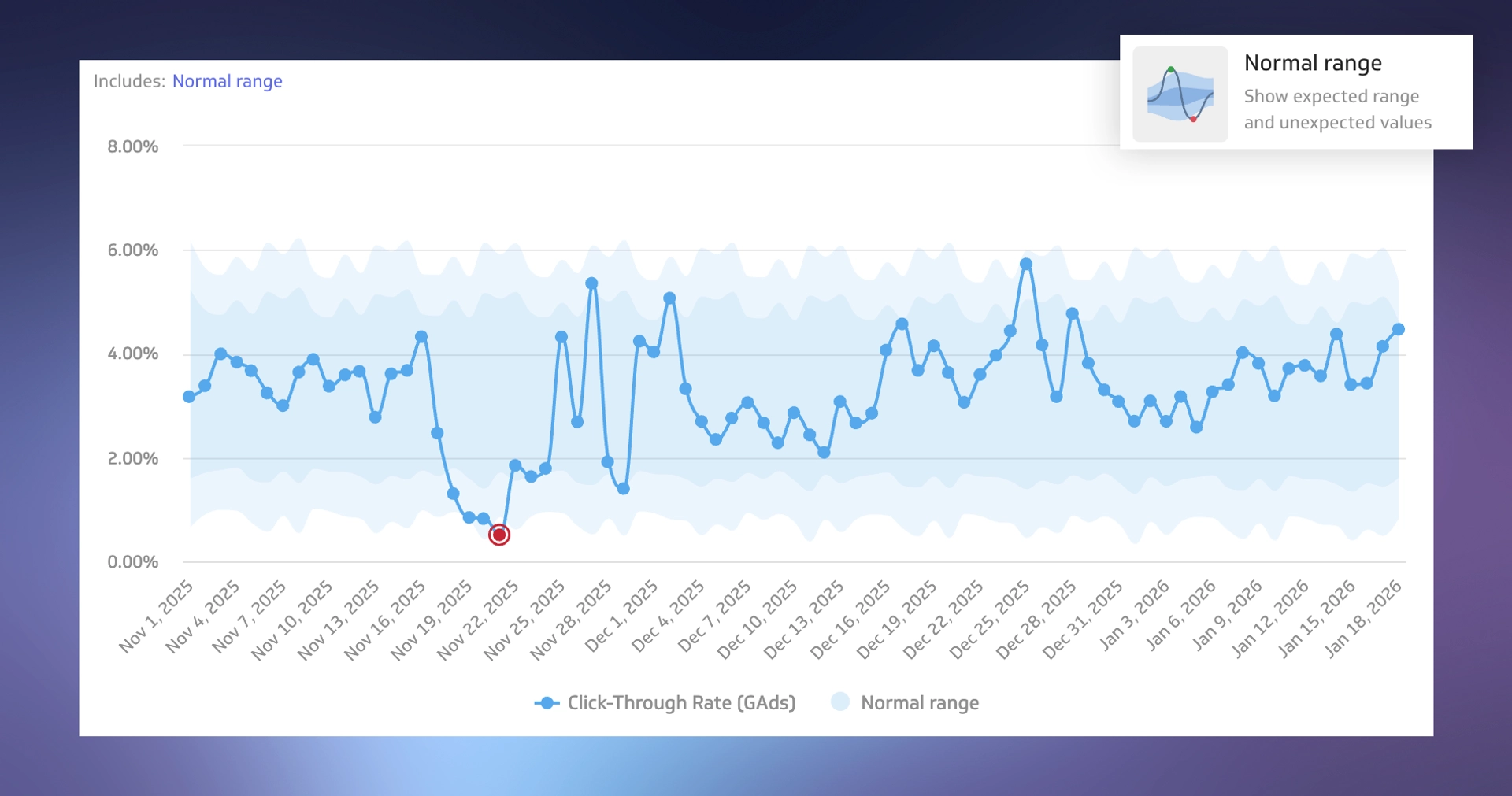
Normal Range adds a shaded band that represents where most values should fall based on history. The band typically captures 95% to 99.7% of expected values, and points outside it are flagged.
Green indicates above normal and red indicates below normal, based on your trend direction settings. Under the hood, PowerMetrics detects seasonality using Fast Fourier Transform, removes the overall trend to normalize the data, then calculates standard deviations to size the band.
- Probability bounds: The band typically captures 95% to 99.7% of expected values.
- Outliers: Points outside the band are flagged. Green means above normal, red means below normal based on your trend direction settings.
- How it works: PowerMetrics detects seasonality using Fast Fourier Transform, removes overall trend to normalize, then calculates standard deviations to size the band.
When to use it
Use Normal Range to catch unusual spikes or dips early, understand volatility, and confirm whether current performance follows the usual seasonal pattern. A tight band signals a stable process; a wide band points to higher variability.
- Catch unusual spikes or dips early.
- Understand volatility: a tight band means a stable process, a wide band means a variable one.
- Confirm if current performance fits the usual seasonal pattern.
What Forecast does
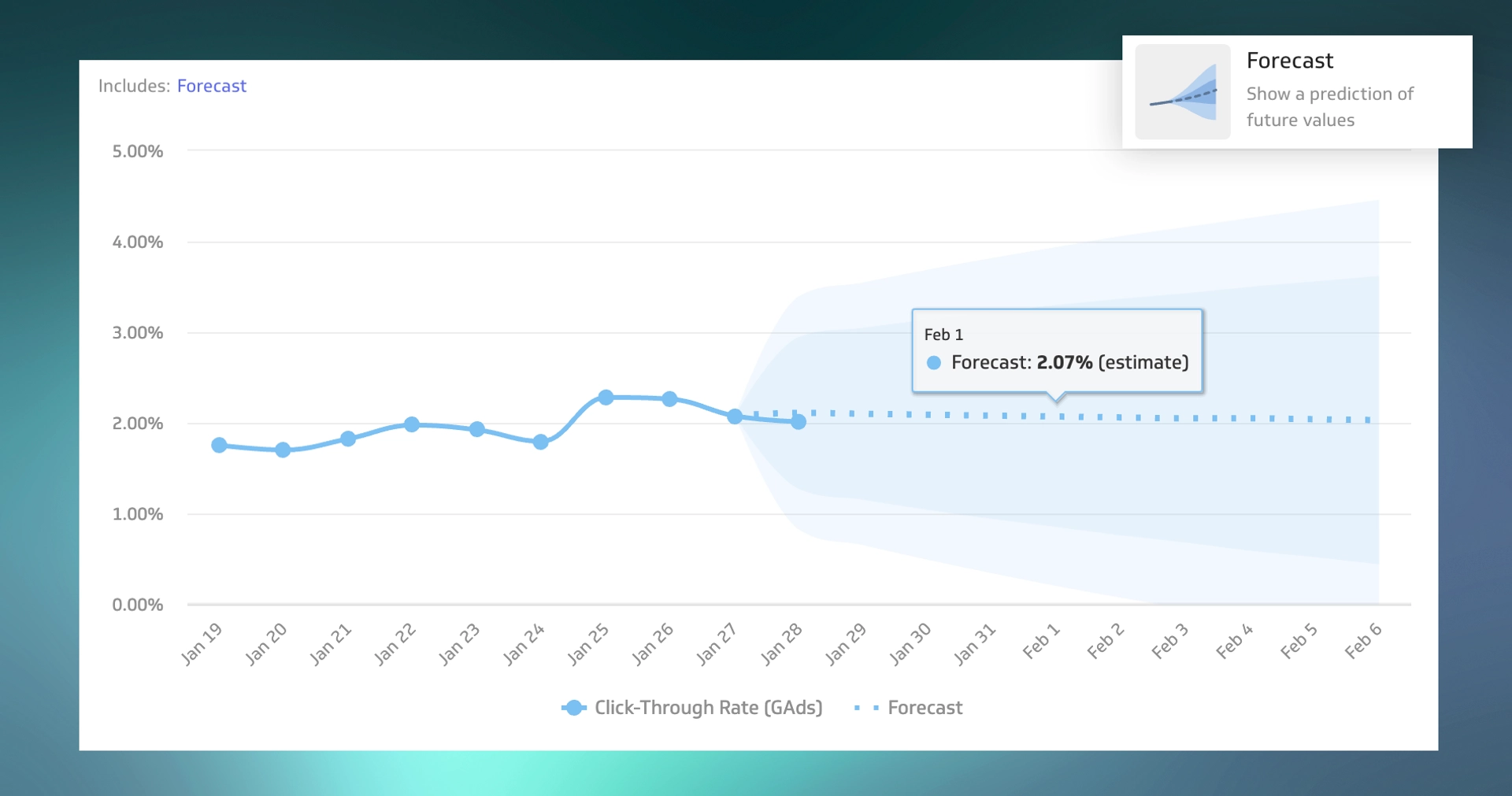
Forecast projects future values from your historical patterns. It uses exponential smoothing (ETS), the AAA variant with additive error, trend, and seasonality. Uncertainty grows as you look further out, which is why the chart shows a widening confidence cone. As actuals arrive, the model refreshes and the line and cone update automatically.
- Method: Exponential smoothing (ETS), AAA variant with additive error, trend, and seasonality.
- Cone of confidence: The further out you look, the wider the uncertainty band gets.
- Dynamic updates: As actuals arrive, the model refreshes and shifts the line and cone.
When to use it
Use Forecast to set realistic monthly or quarterly goals, anticipate staffing, inventory, or budget needs, and share expected outcomes with stakeholders without guesswork.
- Set realistic monthly or quarterly goals.
- Anticipate staffing, inventory, or budget needs.
- Communicate expected outcomes to stakeholders without guesswork.
Quick comparison
| Feature | Primary goal | Visual output | Best for |
|---|---|---|---|
| Normal Range | Contextualize current data | Shaded expected band with coloured outliers | Spotting anomalies and understanding volatility |
| Forecast | Predict future values | Future line plus widening confidence cone | Planning and goal setting |


Before you start: requirements that matter
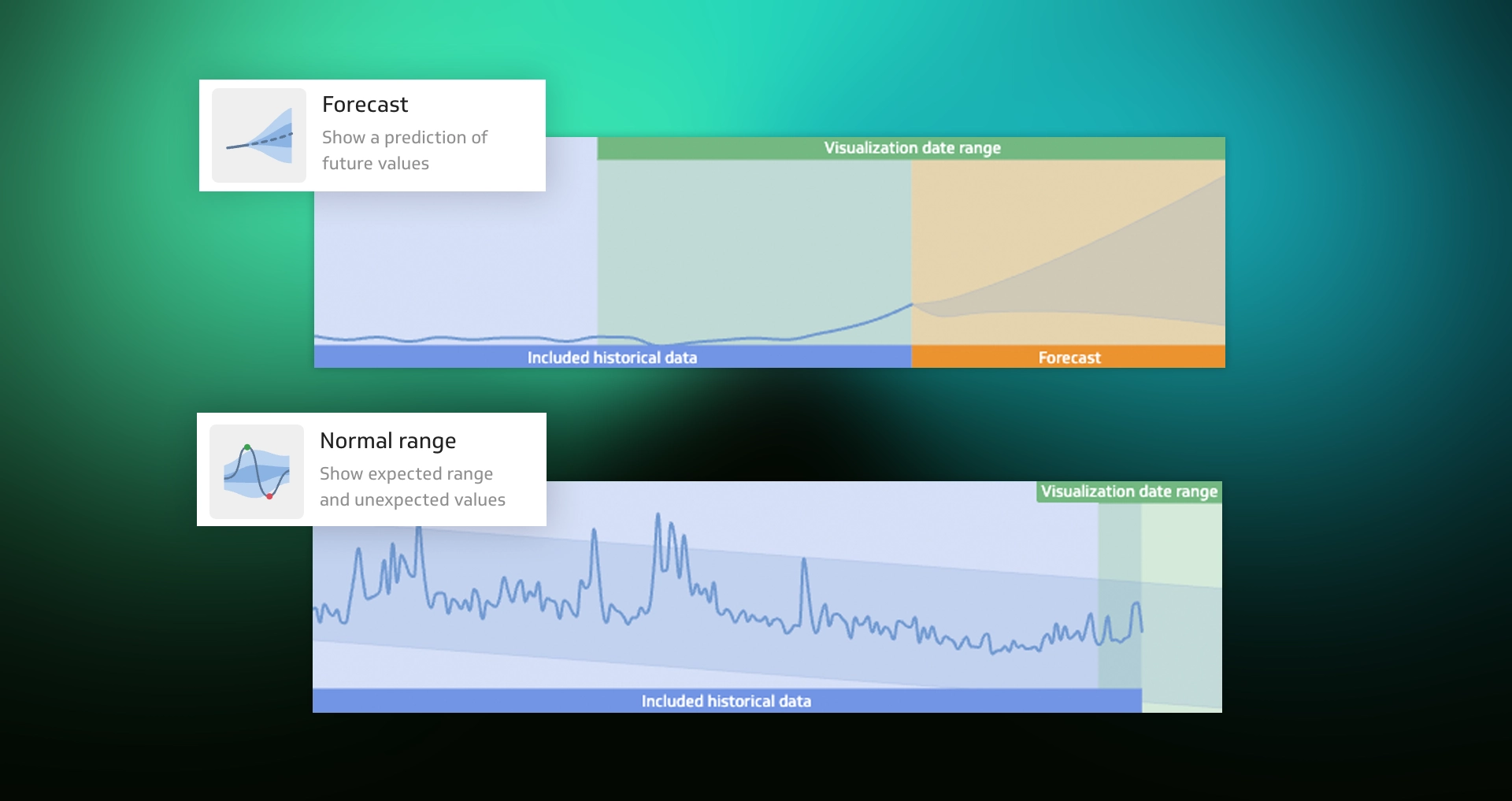
These analyses work on unsegmented, non-cumulative charts with time on the axis using Line or Bar. Each runs on one series at a time, so use Linear Trend or Moving Average for multi-series comparisons.
- Works on unsegmented, non-cumulative charts with time on the axis. Use Line or Bar.
- Normal Range and Forecast analyze one series at a time. For multi-series comparisons, use Linear Trend or Moving Average on segments.
- Plan note: These features require the Advanced Analyses plan or add-on. New users get a 30-day trial.
Turn it on in PowerMetrics
- Open the Metrics list and select your metric.
- Click the 3-dot menu on the metric view, then Personalize view.
- Under Analyses, toggle Normal range or Forecast.
Tip: Click the Normal range or Forecast link under the chart title to see details about the timeframe and data used.
For additional documentation, check out our help-center here. Or watch this quick video that showcases both Normal Range and Forecast visualizations.
0W4NsseNME4
Read the chart: Normal Range
Inside the band is business as usual. Investigate spikes or drops outside the band; they often map to launches, promos, outages, tracking changes, or a seasonality shift. Watch the band's shape as well: weekly or monthly breathing hints at seasonality, and a narrowing band over time can signal better process control.
- Stay calm inside the band: Inside the band is business as usual.
- Investigate outliers: Spikes or drops outside the band often map to launches, promos, outages, tracking changes, or seasonality shifts.
- Watch the band shape: Breathing weekly or monthly patterns point to seasonality. A narrowing band over time can signal improved process control.
Read the chart: Forecast
Trust the near term more, because confidence is tighter for the next few periods. Check the granularity you're viewing, since daily charts capture weekend and holiday noise while monthly views smooth it out. Expect the line to move as estimates are replaced with completed data.
- Trust the near term more: The next few periods usually carry tighter confidence.
- Check your granularity: Daily charts capture noise from weekends and holidays. Monthly charts smooth it out and may change the forecast.
- Expect movement: As estimates are replaced with completed data, the forecast updates.
Workflows you can copy
Support tickets. Use Normal Range to spot an abnormal daily surge, then switch to Forecast to size next month's staffing and on-call coverage.
Revenue or signups. Use Forecast for quarterly targets, then check Normal Range weekly to flag underperformance early and trigger a plan.
Ad spend and CPA. Apply Moving Average per channel to compare segments. When you need a single forecast, select one channel or totals and run Forecast.
Tips for trends on segments
Use Linear Trend for a quick read on direction per segment and easy comparison across categories. Use Moving Average to smooth short-term noise so true shifts stand out, also per segment. Normal Range and Forecast are single-series; rotate the selected series or start with the trend tools when evaluating many segments.
- Linear Trend: Quick read on direction per segment. Good for comparing many categories.
- Moving Average: Smooth short-term noise so you can spot true shifts. Also works per segment.
- Single-series limit: Normal Range and Forecast focus on one series at a time. To evaluate many segments, rotate the selected series or start with Moving Average and Linear Trend.
FAQs and gotchas
Why is my forecast an estimate? Accuracy depends on data volume and stability. New or volatile metrics produce wider cones.
Why do day vs. month views differ? Granularity changes the math. Holiday dips in daily data often fade in quarterly or monthly views.
Why did my forecast change? The model only uses historical values. When real data lands, it replaces earlier estimates and the path shifts.
Toggles disabled? Check the chart type, confirm time is on the axis, and turn off cumulative.