
What's New in PowerMetrics: Summer 2023
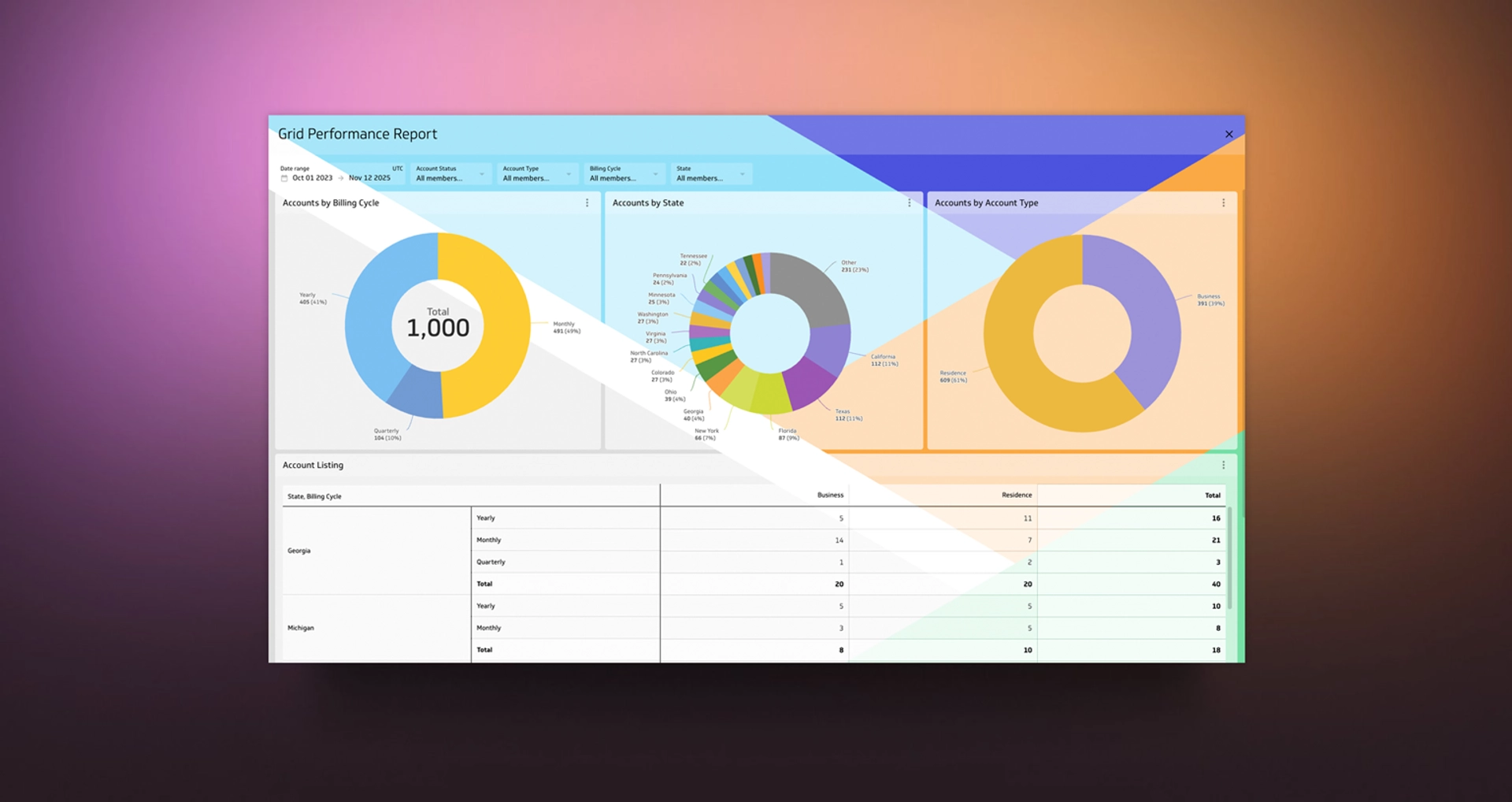
Summary: Your dashboards got style, your charts got sharper, and your workflow got faster. Here's a guide to PowerMetrics Summer 2023 updates—custom backgrounds, fullscreen mode, sorting, starred dashboards, improved tooltips, and batch data refresh—plus quick tips to try each feature.
Sort it, star it, show it off
Your dashboards should look like your brand and tell your story at a glance. New appearance controls and a fresh viewing mode make that easy.
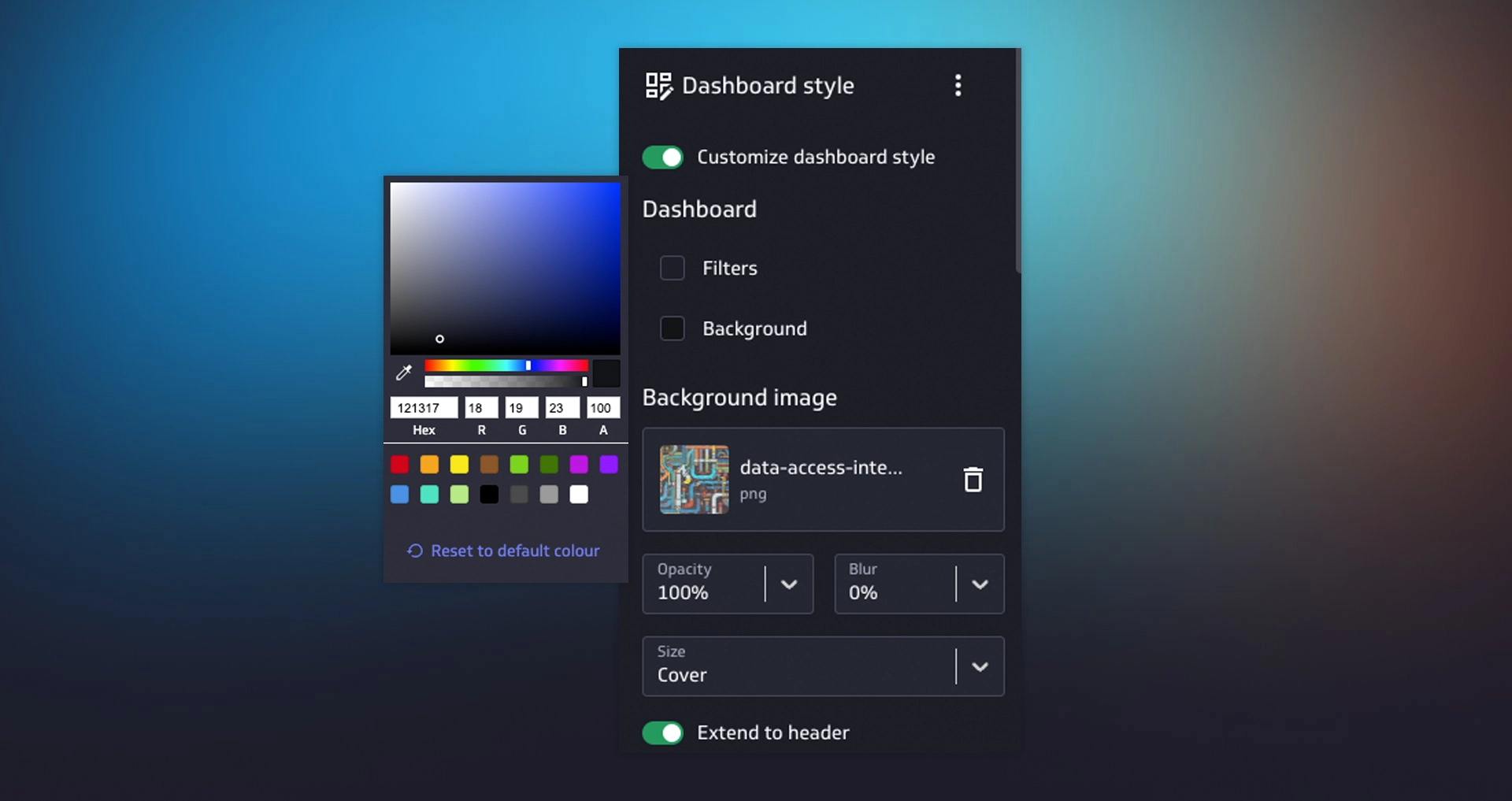
Background colours and images
Dress your dashboard to match your brand palette or campaign vibe. Pick a background colour, upload a backdrop image, or do both for extra visual impact.
Try it:
- Open a dashboard, then go to its settings or appearance controls.
- Choose a background colour from the picker.
- Add an image, then adjust fit or position for best contrast.
- Preview, save, and share.
Fullscreen mode
Need a clean stage for a team meeting or a big-room screen? Fullscreen removes the interface chrome so every pixel works for your story. Present with confidence, whether you're sharing metrics with leadership or displaying live KPIs on a monitor.
Try it:
- Open any dashboard.
- Select fullscreen from the view options.
- Navigate tiles with the keyboard or mouse while presenting.
- Exit fullscreen to return to the normal view.
Hide the dashboard date range
Not every view needs a date banner. Turn it off when the time frame is obvious from the content or your audience doesn't need to see it.
Try it:
- Open a dashboard and head to its display settings.
- Toggle date range visibility off or on.
- Save your changes and refresh to see the update.
Navigate faster
Less hunting, more doing. Pin your favourites and pick up where you left off right from the sidebar.
Quick access to your favourite dashboards
Star the dashboards you use most. They'll show up under Starred in the left sidebar, right above your five most recently opened unstarred dashboards. This keeps your workflow streamlined and your most-critical views always within reach.
Try it:
- Open a dashboard you use often.
- Click the star icon to add it to Starred.
- Look in the sidebar for Starred and Recent to jump back in fast.
- Unstar dashboards anytime to keep your list focused.
See more in every chart
Clarity wins. Sorting controls and clearer segmented tooltips help you compare values faster and spot what matters most.
Sorting for metric visualizations
Organize and display metric data the way you want to see it—on dashboards, metric homepages, and in Explorer. Depending on the chart type and style, you can sort by x-axis, legend, rows, columns, and more. This flexibility means you can highlight top performers, spot outliers, or arrange data to match your narrative.
Try it:
- Open a chart and look for sorting options in its settings.
- Choose ascending or descending for the field that matters most.
- Switch chart types if needed to unlock different sort controls.
- Save your sort preference with the dashboard.
Viewing segmented data in charts
Hovering a segmented bar, line, area, or pie chart now highlights the segment across the entire date range. You'll see darker text in the tooltip and a deeper colour in the component, so your eye lands on the right series immediately. This makes it faster to compare performance across segments without losing context.
Try it:
- Hover over a stacked or segmented chart.
- Watch the active series get bolder in both the tooltip and the visual.
- Flip between series to compare at a glance.
- Use this to identify trends within each segment.
Keep data fresh
Up-to-date numbers build trust. Refresh more feeds with fewer clicks and stay confident in your data.
A new way to refresh data feeds
Queue one or more data feeds to refresh from your data feeds list page. Batch the work, then carry on while the updates run in the background. No need to refresh feeds one at a time—select multiple feeds and let PowerMetrics handle the rest.
Try it:
- Open the data feeds list.
- Select the feeds you want to refresh.
- Choose refresh, then let the queue do its thing.
- Monitor progress or close the page and check back later.


Start small, build momentum
Pick one update and give it a spin. Set a background colour, star a dashboard, sort a chart, or queue a refresh. Small tweaks add up to a smoother daily rhythm and help your team work faster with data they trust.