
Tags in PowerMetrics: Organizing assets for users and AI
Summary: Tags act as a metadata layer that connects disparate metrics, dashboards, and data feeds. Applying a consistent tagging strategy transforms flat lists of assets into a structured knowledge graph. This structure allows PowerMetrics to understand not only what your data is, but how it relates to your business logic, making it easier for teams to navigate the account and for AI to provide accurate insights.
Why tags matter
Tags group related metrics, dashboards, and data feeds so you can quickly find and work with them. Tags also inform the PowerMetrics knowledge graph, helping to build a map of relationships for everything in your account. Thoughtfully-applied tags give the AI the context it needs to surface the right assets, suggest relationships, and answer natural language questions with higher accuracy.
What tags unlock
The value of tagging is split between immediate human use and long-term machine learning optimization. For users, tags are a fast, automated way to find specific, related assets. For PowerMetrics AI, tags provide the all-important "environmental context" to surface the assets you need (e.g., production-ready data) or the ones you don’t (e.g., experimental drafts).
- Faster discovery: Tags allow for instant filtering by department, project, or priority, reducing the time spent hunting for specific KPIs.
- Better AI answers: Effective tagging informs the knowledge graph, helping the AI Assistant surface the right assets and answer natural language questions with higher precision.
- Efficient asset management: Applying a tag to a group of related items lets you move, filter, or add them to dashboards as a single unit.
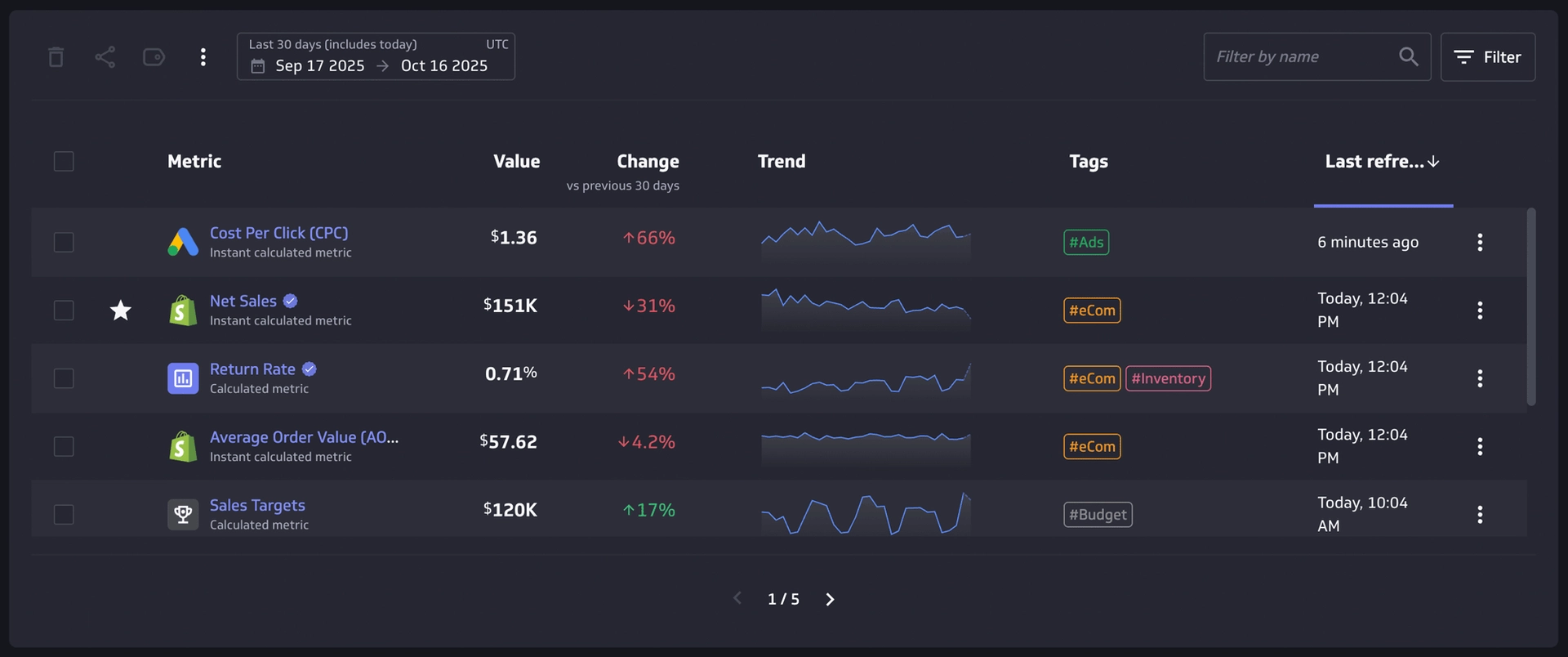
How tags benefit daily operations
A well-implemented tagging system changes how your team works. Instead of relying on tribal knowledge or naming conventions that may be forgotten or misunderstood, teams count on a visible, shared taxonomy. This organizational clarity creates a more reliable environment for data governance and cross-functional collaboration.
- Conceptual organization: Filter libraries by business concept instead of guessing the exact name of a metric, dashboard, or data feed.
- Shared context: By applying identical tags to connected assets, their relationships are automatically recognized by the system.
- Governance and trust: Tags act as a visual "categorical stamp," helping users identify how to approach and use various assets.
What good tagging looks like
Effective tagging is a balance between being descriptive enough for a human to understand and structured enough for the AI to parse. Using a mix of functional, organizational, and technical tags ensures that all aspects of the data lifecycle are covered.
- Revenue metrics: Use tags like sales, partners, and goals.
- Marketing assets: Use tags like ads, website, and AB test.
- Admin & governance: Use tags like testing, draft, and data team.
A simple tagging language
For consistency and readability, keep tag names concise and easily-understood. Abbreviations are OK, but only if they’re commonly used among your colleagues. To improve usability and make it easier to combine tags if needed, apply only one concept per tag.
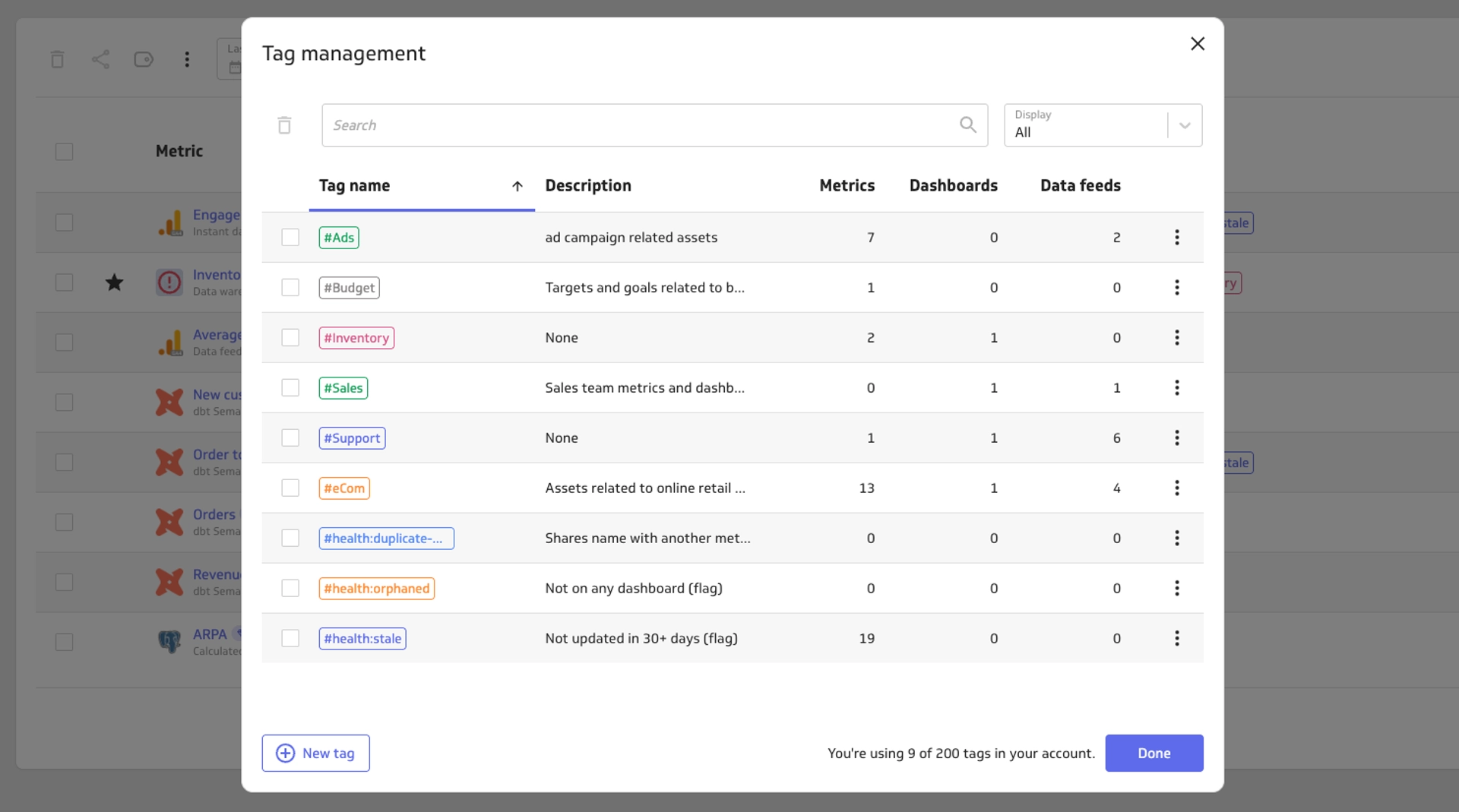
- Colours: Every tag has a colour associated with it. Use these to add an additional layer of organization and at-a-glance efficiency.
- Description: Add a description to each tag to help ensure users truly understand its purpose.
- Sometimes less is more: Too many tags can cause confusion and may mean you’re missing some opportunities to better-group your related assets.
Four high-impact plays for your team
You can see immediate asset organization improvements by focusing on a few, important tagging strategies. These "high-impact plays" help solve some of the most common issues teams face—data mistrust, lack of ownership, and cluttered libraries.
- Trust at a glance: Use metric certification (a special sort of tag) and tags such as "draft" or "old" to ensure users are relying on approved metrics.
- Clear ownership: Tag assets with "department" or "campaign name" so technical questions are immediately sent to the right person.
- Personalized navigation: Use task-specific tagging to create "playlists" of data for tasks, such as an executive weekly summary.
- AI-assisted filtering: Use tags directly in your AI Assistant chats, for example, ask the AI to "Show me all ad metrics for the launch campaign."
Quick start in ten minutes
Setting up a tagging system doesn’t require a complete overhaul of your data. Start small by applying a high-impact set of labels to your most important assets. With this minimal effort, you’ll establish a foundation that you and your team can build on over time.
- Identify core tags: Choose 10 starter tag categories, making sure you cover department, status, and ownership areas.
- Seed the account: Create tags using concise, clear names and descriptions so everyone will understand their purpose.
- Tag top assets: Apply your new tags to your 20 most-viewed metrics and dashboards.
- Verify with AI: Ask the AI Assistant to find assets based on your new tags to see the results of your work in action.
Habits that keep your catalog tidy
As your account grows, your tag library can get a little messy. Performing some scheduled, light maintenance will help you avoid the dreaded "tag bloat" (where too many similar labels are making the system confusing and difficult to use).
- Quarterly reviews: Periodically merge duplicate tags and delete those that are no longer applied to any assets. Ask the AI Assistant for help!
- Coverage check: Ensure new assets are not being left behind. Search the catalog or ask the AI Assistant to find assets that are missing tags.
- Signal over noise: Avoid over-tagging; limit each asset to 2–4 tags to keep search results precise.


Roles and permissions
Permissions for managing tags vary based on the user's role within the account. Understanding these boundaries helps ensure that the tagging structure remains controlled while still allowing users to organize their own assets.
- Account administrators: Can view, edit, and delete tags across the entire account.
- Editors: Can manage account tags and apply them to data feeds, metrics, and dashboards.
- Contributors: Can apply or remove existing tags on metrics and dashboards they have access to.
- Viewers: Can see tags applied to metrics and dashboards to help them navigate and filter their view.
Check out the PowerMetrics Help Center to learn more about tagging assets in PowerMetrics.