
Unlocking instant metrics and managed data feeds

Summary: Instant metrics give you fast access to pre-built metrics and dashboards the moment you connect a service. This guide explains how to unlock instant metrics and their underlying data feeds, converting managed assets into fully editable resources. You’ll see how unlocking can help you learn how PowerMetrics works while also giving you a solid base for custom building.
Adding instant metrics is the fastest way to start working with real data in PowerMetrics. Connect a service like Google Analytics, HubSpot, QuickBooks, Salesforce, or Zendesk, for immediate access to pre-built metrics and dashboards, ready to use without any configuration.
This out-of-the-box experience is a great starting point, but there’s more… .
You can unlock these instant metrics and their underlying data feeds, converting managed assets into fully-editable resources that you control. This guide explains what that means, why it matters, and how to do it.
What are instant metrics?
Instant metrics are pre-built metrics that become available as soon as you connect a supported service. They come in two forms.
Instant data feed metrics are base metrics powered directly by a data feed. That data feed connects to a service or API, then retrieves and prepares the underlying data. Common examples include:
Sessions (Google Analytics)
Revenue (QuickBooks, Stripe)
Tickets Created (Zendesk)
Total Contacts (HubSpot)
Instant calculated metrics combine other data feed metrics as operands using a formula—transforming them into meaningful KPIs. Common examples include:
Revenue per Customer
Cost per Lead
Page Views per Session
To preserve their data integrity as pre-built assets, both instant metric types are managed and intentionally locked. However, you can easily unlock them and their associated managed data feeds.
Read on to find out why this flexibility makes instant metrics extra powerful.
Why unlock an instant metric?
Editing options for instant metrics are intentionally limited to ensure their predictability and maintain their best-practice configuration. When you unlock them, they behave like custom metrics, giving you full control over their configuration and underlying data. Fields that were previously read-only become editable, for example:
Measure selection
Dimensions and segmentation options
Data format type
Date and time settings
Display format and precision
For instant calculated metrics, you also get access to the underlying formula. Once editable, you can see how the metric was constructed, change operands to point to alternative metrics, and adapt calculations to align with your organization's metric definitions. Seeing precisely how KPIs are calculated helps teams understand data lineage—an invaluable part of building a contextual, trusted metric catalog.
Why unlock an instant data feed?
When you unlock a managed data feed, it becomes a fully-editable data feed that can be modified in the Data Feed Editor. Here's what that unlocks.
Learn from the original query
Instant metrics use best-practice configurations and rely on pre-determined data (retrieved by the Query Builder in PowerMetrics). Making the underlying data feed editable lets you:
See how the data was retrieved
Understand which dimensions and measures were selected
Learn how filters were applied
Explore how PowerMetrics models data from the source system
This is one of the most effective ways to learn how custom metrics are built. Instead of starting from a blank page, you work from a functioning example.
Modify the query
Once unlocked, you can return to the Query Builder and adjust the source query directly. For example, you might:
Add additional dimensions or measures
Update or remove filters
Expand the scope of the retrieved data
Enrich and transform data
The Data Feed Editor provides extensive data preparation capabilities, allowing you to:
Rename columns
Adjust data formats
Create derived columns using formulas
Clean and standardize data
Streamline data management and improve lineage
Rather than building new metrics from scratch, you can use proven instant metrics and data feeds as starting points. This approach helps you:
Reduce duplicate work
Maintain a cleaner metric catalog
Ensure consistency across teams
Promote security and governance
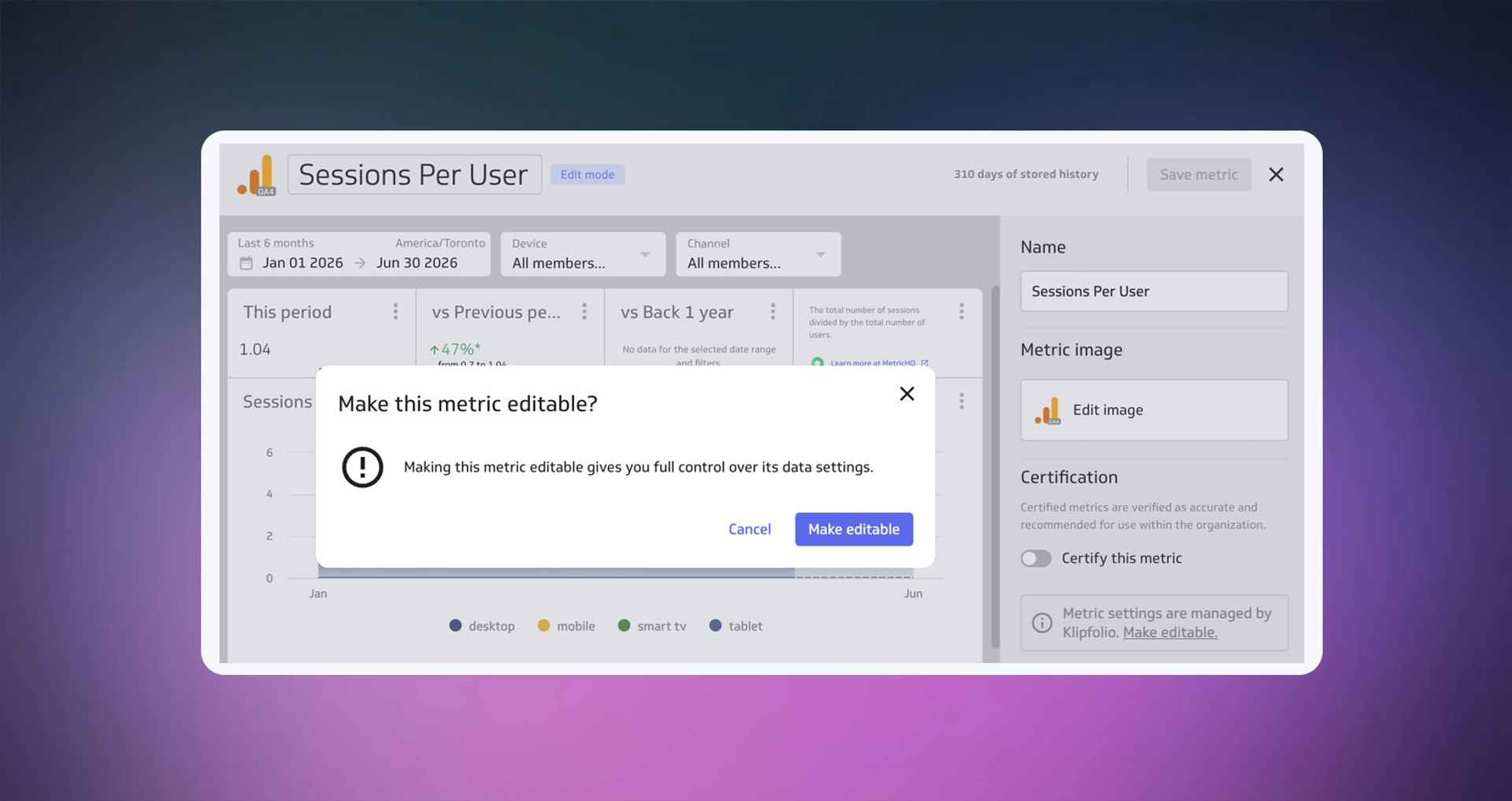
How to make an instant metric editable
Follow these steps to unlock an instant metric:
- Open the instant metric.
- Click Edit.
- Locate the message: Metric settings are managed by Klipfolio. Make editable.
- Click Make editable.
- Save your changes.
The instant metric is converted into a fully-editable custom metric that you can configure freely.
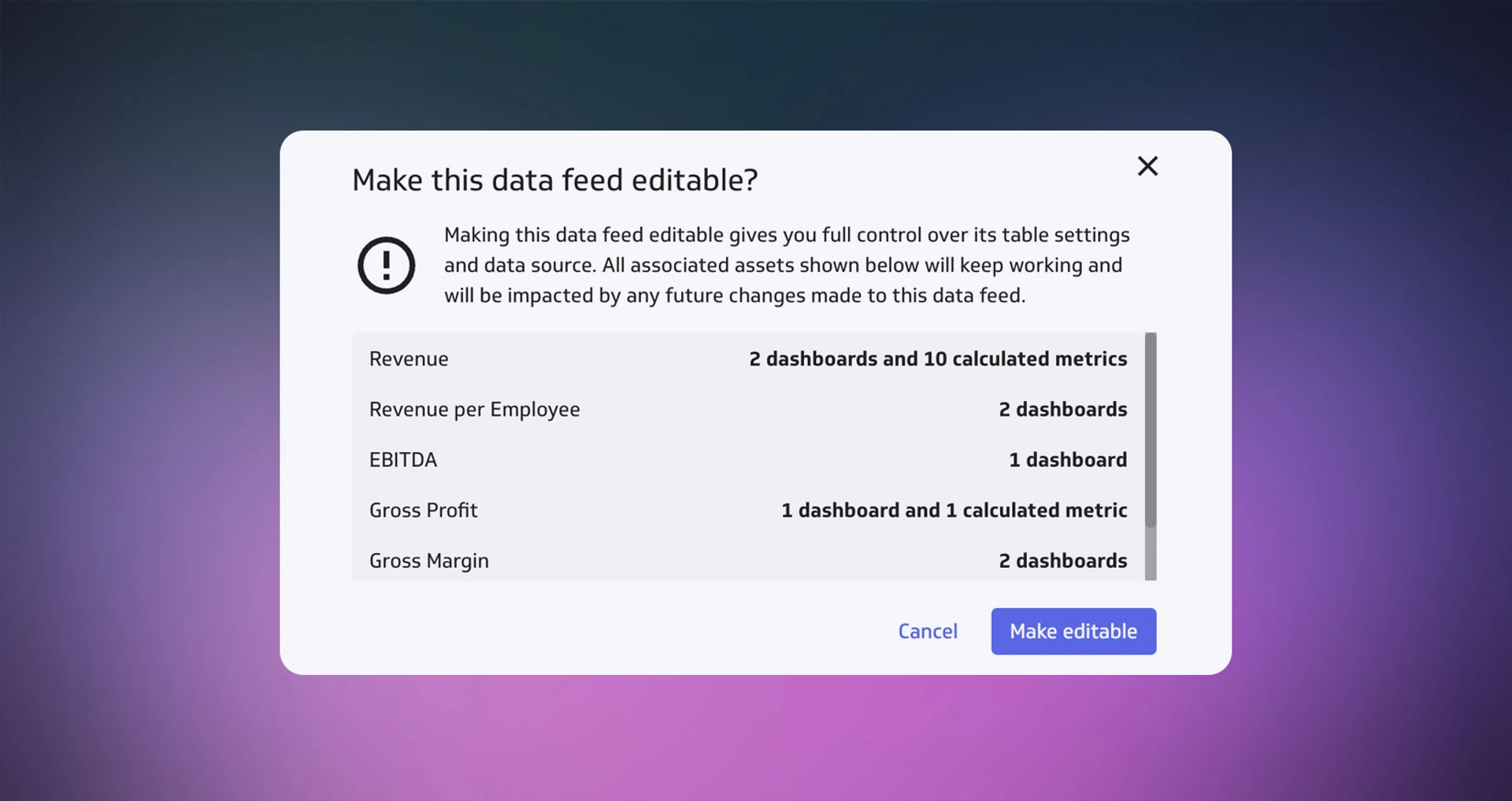
How to make a managed data feed editable
Follow these steps to unlock a managed data feed:
- Open the managed data feed.
- Click Edit.
- Locate the message: Data feed table settings are managed by Klipfolio. Make editable.
- Click Make editable.
- Save the data feed.
After saving, the managed data feed becomes a fully-editable custom data feed you can customize, use as a learning tool, or treat as a template.


A practical way to learn PowerMetrics
If you've ever wondered how an instant metric was built, unlocking it is one of the fastest ways to find out. You can inspect:
Metric configuration and formula logic
Query Builder selections and API queries
Data feed transformations and derived columns
Working from a functioning example is far more instructive than starting from scratch. Whether you're building your first custom metric or refining a mature metrics catalog, unlocking instant metrics and data feeds gives you complete visibility into how your KPIs are defined, sourced, and managed.